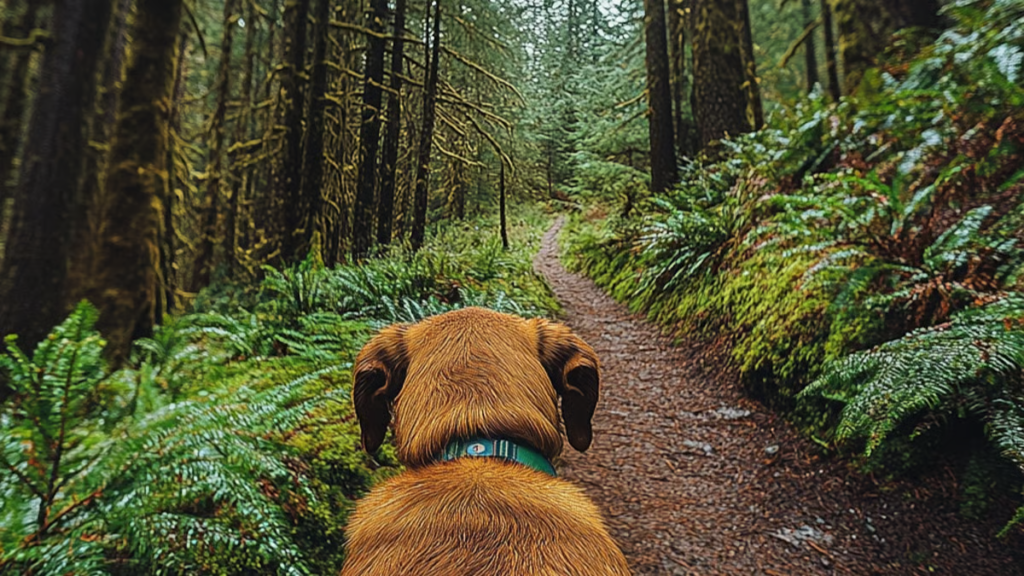

The cinematic zoom is one of the most recognizable cinematic visual techniques. It effortlessly directs focus and enhances emotional resonance throughout the scenes. Nowadays, the complexity of zoom animation from still photographs can be reduced by modern artificial intelligence, which can automate realistic zoom animation. Framia Pro offers a simple setting to produce refined camera movement, even if you’re not an editor. When choosing contemporary AI content generation workflows, creators may consider platforms like Framia Pro.
Why Cinematic Zoom Effects Make Videos More Engaging
The zoom effect in movies is useful for attracting human attention, making it more enjoyable. When zooming is used, it is done gradually, so that viewers’ attention is drawn to important details without being distracted. Slow camera movement also enhances emotional impact and can make expressions, objects or scenery more pronounced. Controlled zooming movement adds to the visual storytelling as each frame is purposeful and feels like it is connected. It also brings back a polished look that’s characteristic of professional filmmaking. From advertising to presentations to personal projects, subtle movement can make a static image more memorable than a regular photo and will hold people’s attention much longer.
Different Types of AI-Powered Cinematic Zoom Effects
There are a number of different zoom styles that can be used to achieve different creative goals with the AI picture to video technology. Slow zooms slowly and elegantly reveal facial expressions or product details. The dramatic zoom-outs provide a wider context to the environment and add to the cinematic scale. Multi-stage progressive zooms move the focus seamlessly between a series of visual elements. Dynamic zooming is based on the subject to ensure that the primary object is kept within the center of the animation. Background-emphasized movement shows landscapes, architecture, or surrounding environments while maintaining the natural depth. Choosing the right zoom type enhances storytelling and provides natural-looking movement.
Writing Better Prompts for Natural Zoom Animations
Good writing prompts result in realistic movement and enhance the quality of the final video. Give clear directions for camera direction (zoom distance, speed of movement, etc.). Set intensity levels and choose the level of transition between gentle, moderate and dramatic. Use zoom, pan or tilt to add depth to the composition for a more cinematic feel. Use realistic motion; don’t have the camera do unrealistic moves or accelerate quickly. Smooth transitions help maintain immersion and avoid visual jumps. The same principles apply to prompt writers working with a lyric video generator, as timing and continuity are crucial in animated scenes too.
Steps to Add Smooth Cinematic Zoom Effects with AI Picture to Video
Step 1: Open the video generator and select a model
-
Begin by signing up for Framia Pro. Open the “Home” tab from the left vertical menu bar. Then click “Agent” from the drop-down menu in the left bottom corner of the dialogue box.
-
Choose the AI model that best suits your zoom animation project.
-
Under the “Select models” menu, select the “Video” option.
-
Pick any supported model, including “Seedance”, “Kling”, “Veo”, “Wan”, or “Gemini”.
Step 2: Import your image and define the zoom motion
-
Select the “+” tab and upload a photo or multiple photos from your device as references.
-
Enter a text prompt in the dialogue box that clearly explains the cinematic zoom effect you want in the final video.
-
Use the “Settings” tab to set the aspect ratio, video duration, and video resolution.
-
Press the “Generate” tab to create the zoom animation.
Step 3: Polish the zoom effect and export
-
Watch the result using “Preview”. If you want smoother motion or other adjustments, edit the video with the tools in the bottom menu bar.
-
You can “Upscale video”, “Regenerate video”, or modify the video further with text instructions.
-
When the video is ready, click the “Download” tab beneath the video to save it on your local device.
Practical Ways to Use AI Zoom Effects Across Different Visual Projects
AI-powered zoom effects support many creative and professional applications across industries. Common examples include:
-
Slow close-ups of the product are helpful to promote features of the product without extra filming.
-
Controlled movement across scenic landscapes and destination highlights gives travel photography an immersive storytelling.
-
Portrait shots will increase emotional connection by focusing on facial expressions, using slow zooms in the cinematic style.
-
In architecture, projects show the details of the structure and give depth with the right camera movements.
-
Educational graphics help to focus on key information, making it easier to understand and remember.
-
Social media posts boost engagement and extend the reach of existing image libraries with subtle animation.
Leveraging Multiple AI Models for Better Zoom Results
Thoughtful selection is important as different generation models result in different visual characteristics. Some models are more about realistic camera work, and others allow for greater artistic freedom. The evaluation of multiple engines is to determine which is the most appropriate combination of smoothness, creativity and motion accuracy. Iterative conversational editing also polishes zoom direction, framing and pacing without having to rebuild projects completely. For artists experimenting with an anime generator, model selection is equally important, as different choices can make a world of difference in the animation’s style, consistency, and the overall creative expression, depending on the production’s specific objectives.
Why Framia Pro Canvas? – Connected Solution
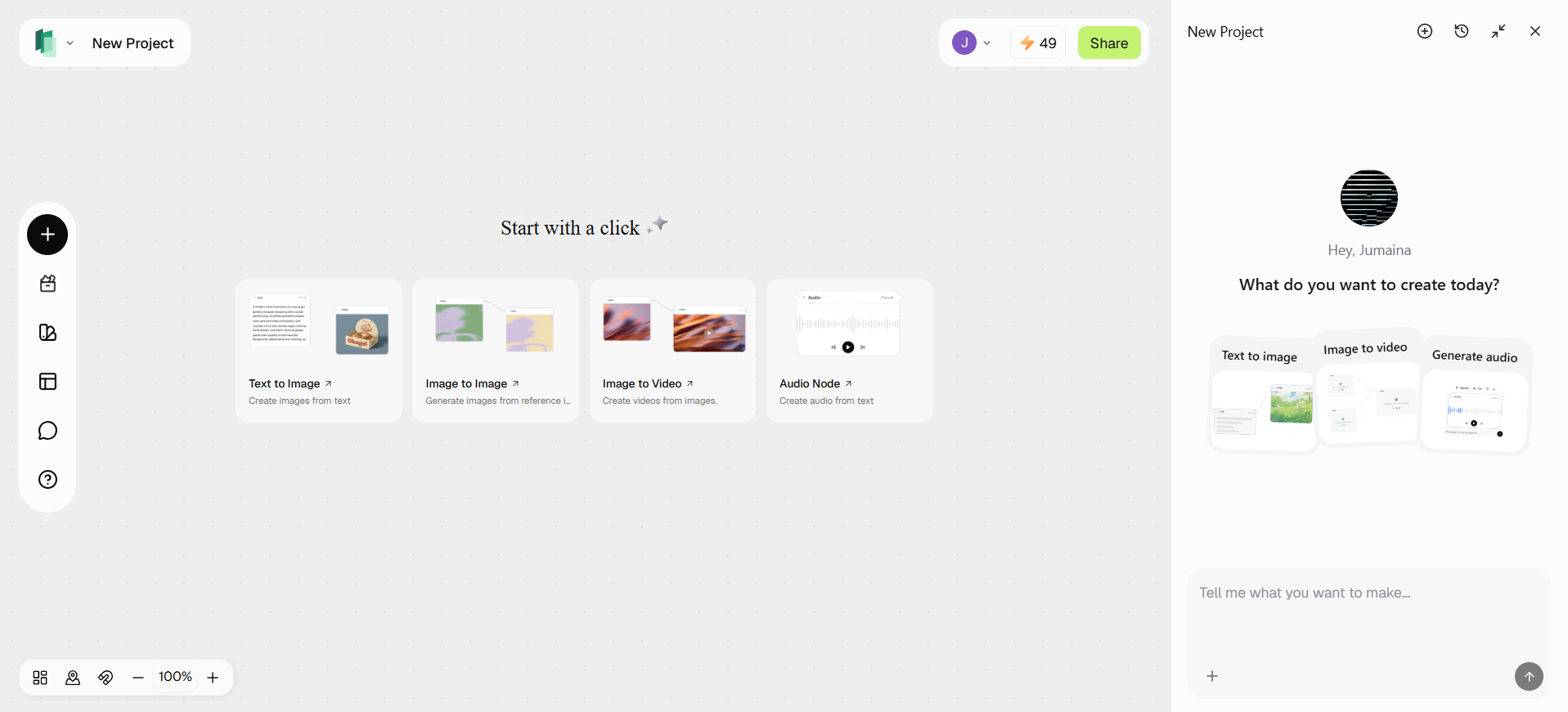
Framia Pro Canvas’ smart workflow for marketing production is designed around connected creative agents. Creators use natural language to describe the objective of the campaign, rather than building separate apps. The platform automatically sequences production stages into a coordinated workflow. It produces copy in the name of a brand, develops banners, social graphics and mobile content across various supported models and extends assets into full promotional video. Voiceover, music and final editing are still within the same production system, and polished downloadable campaigns are created without using creative applications.
Benefits of Framia Pro’s Integrated AI Production Environment
Integrated creative environment ensures a minimum of any unnecessary complexity and consistent project quality. Framia Pro is an all-in-one video creation platform that integrates image generation, music production, and voiceovers in a single workspace, eliminating the need for separate software. There are AI agents tailored to various creative processes, such as advertising, short-form content, e-commerce, and music production. Unified editing reduces production time without compromising quality through revisions, when compared with manual software pipelines. The chat-based refinement also makes improvements easier without complicated timelines. Framia Pro provides a comprehensive workflow, reducing the need for multiple tools and simplifying creative project management from start to finish.
Conclusion
Cinematic zoom effects can take ordinary photographs and turn them into visual stories that have a smooth, realistic motion. Polished, natural-feeling animation is produced with effective prompts, appropriate zoom styles and thoughtful refinement, and is used for many creative projects. Framia Pro facilitates this process with a variety of generation models, conversational editing and an efficient production workflow that streamlines revisions without compromising visual quality. The synergy of intelligent motion generation and streamlined editing enables creators to generate cinematic videos from images efficiently and with consistent professional results.